CNC nesting: pack parts together in the browser
Nesting arranges the parts of a project on a sheet of material so they fit with less waste. Design Swiftly has a nesting tool inside its browser CAD/CAM editor: it packs all the shapes in a design tightly together with the spacing you set, so you can then make toolpaths and G-code from the same file.
Updated by the Design Swiftly team
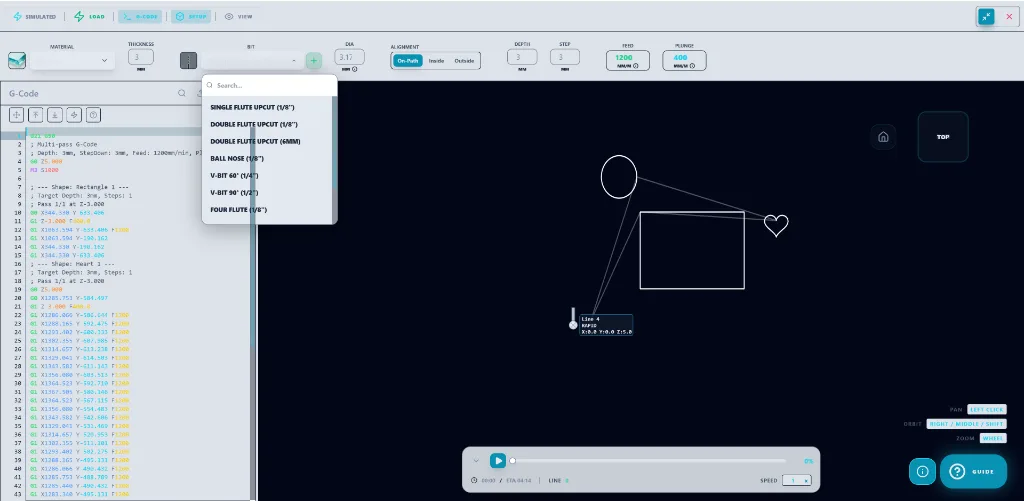
What nesting in Design Swiftly does
- Packs all the shapes in the design tightly together.
- Spacing between parts is set in millimetres, from 0 to 50 mm.
- Works on the same vector shapes you draw or import, so no export to another program is needed.
- After nesting, every part gets its own cut and the whole layout exports as one G-code file.
- Cut order cuts inner shapes before the outer shape that contains them, so parts stay held while they are cut.
How to nest parts for a CNC router
- Draw or import the parts. Bring every part of the project into one design.
- Set the spacing. Open the nesting tool and enter the gap to keep between parts, in millimetres.
- Nest the shapes. Press Nest Shapes to pack the parts together, then check the layout fits your stock.
- Make toolpaths. Assign cuts, simulate and export the G-code for the whole layout.
Why nest before cutting
Plywood, MDF and acrylic come in fixed sheet sizes. Packing parts closer together means fewer sheets per project and less offcut, and cutting the whole sheet as one job saves setup time.
Frequently asked questions
Is there free CNC nesting software in the browser?
Design Swiftly includes a nesting tool in its browser editor; see the pricing page for what each plan includes.
Nest your next sheet
Design Swiftly runs in the browser. The Free plan needs no install; see pricing for what Pro and Studio add.
Open Design Swiftly